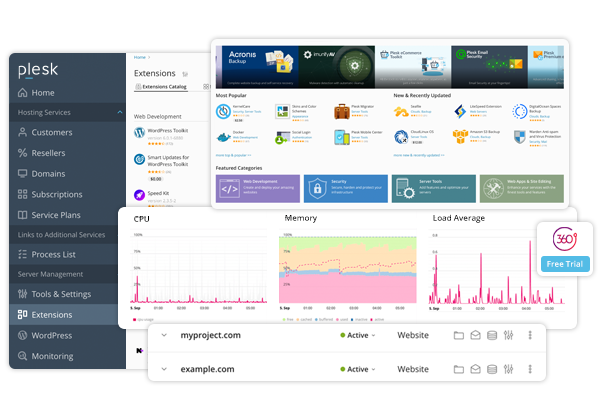
Plesk is a web hosting control panel that allows you to manage websites, databases, email, and server settings from a graphical interface. It is a popular alternative to cPanel, particularly valued in Windows environments and on servers where you need to manage multiple sites for different clients.
What is Plesk?
Plesk is a commercial web hosting control panel that allows you to manage servers, websites, databases, email accounts, and SSL certificates from a browser-accessible visual interface.
It was originally developed in 2001 by the company Parallels, and since 2015 has operated under its own Plesk brand. It is available for Linux and Windows servers, which sets it apart from most of its competitors, which only run on Linux.
It is widely used by hosting providers for resellers, web agencies, and system administrators who manage multiple clients from a single environment.
In practice, Plesk acts as an intermediary between the server’s operating system and the user: instead of running commands from a terminal, the administrator can create domains, install applications, or configure firewall rules with just a few clicks.
What is Plesk used for?
Plesk covers a wide variety of tasks related to server and website administration. These are the most common situations in which it is used: It is especially useful for digital agencies that manage multiple clients’ sites, and for developers who need a controlled production environment without constantly relying on system commands.
- Management of multiple websites from a single panel, with independent control per client or domain.
- Administration of MySQL and PostgreSQL databases, including visual access via the integrated phpMyAdmin.
- Creation and management of professional email accounts, with support for IMAP, POP3, and SMTP.
- Automated installation of CMS applications, such as WordPress, Joomla, or Drupal, via integrated catalogs.
- SSL certificate management, including native integration with Let’s Encrypt for free issuance.
- Configuration of firewall rules and basic security protections directly from the interface.
- FTP and SSH access, with the ability to create additional users with restricted permissions.
Key Features of Plesk
Plesk organizes its features around three types of users: the server administrator, the reseller, and the end customer. Each has access to a different level of configuration.
Domain and Subdomain Management
From the control panel, you can add primary domains, subdomains, and alias domains. Each domain has its own file space, PHP settings, and DNS records. This allows you to isolate environments between projects, which is critical when working with multiple clients.
Database Management
Plesk includes an interface for creating MySQL or PostgreSQL databases, assigning users with specific permissions, and accessing phpMyAdmin with a single click. In practice, this greatly simplifies the deployment of database-dependent applications.
The email module allows you to create mailboxes, mailing lists, forwarding rules, and anti-spam filters. It is also possible to configure SPF, DKIM, and DMARC records directly from the interface, which helps maintain a good sending reputation.
Security
Plesk includes security tools such as Fail2Ban to block brute-force login attempts, ModSecurity as a web application firewall (WAF), and support for Let’s Encrypt. There are also paid extensions for antimalware scanning and monitoring.
Extensions and Marketplace
One of Plesk’s most comprehensive features is its extension marketplace. There are tools for migration, caching, monitoring, SEO, Git integration, and backup automation, among others. Some are free, while others come at an additional cost.
Support for Node.js, Ruby, and Python
Unlike more limited control panels, Plesk allows you to configure runtime environments for Node.js, Ruby, and Python directly from the interface, making it attractive to developers working with applications outside the classic LAMP stack.
How to install Plesk on a server
Installing Plesk on a Linux server is done via the command line. The official process uses an installation script maintained by Plesk.
Prerequisites
- Supported operating systems: Ubuntu 20.04/22.04, CentOS 7/8, Debian 10/11, AlmaLinux 8/9, Rocky Linux 8/9.
- Recommended minimum RAM: 2 GB (4 GB for production).
- Root access to the server.
Ports 80, 443, 8443, and 8880 must be available.
Step-by-Step Installation Process
1. Connect to the server via SSH:
ssh root@SERVER_IP
2. Download the official Plesk installer:
wget https://autoinstall.plesk.com/plesk-installer
3. Grant execution permissions:
chmod +x plesk-installer
4. Run the installer:
./plesk-installer
The installer is interactive and allows you to choose the version and components to install. The entire process may take between 15 and 30 minutes depending on server speed and connection.
5. Access the control panel after installation:
Once finished, Plesk will be available at:
https://IP_DEL_SERVIDOR:8443
Upon first login, the system will prompt you to configure administrator credentials and activate the license.
Note: Plesk offers a free 15-day trial without requiring a license. This is sufficient to evaluate the control panel before committing to a subscription.
For this type of installation, a VPS hosting plan with full root access is the most suitable environment. This is what allows you to have total control over the operating system and run exactly the software you need, including control panels like Plesk.
Common Mistakes When Using Plesk and How to Avoid Them
1. Failing to Configure DNS Records Correctly After Adding a Domain
Plesk manages the server’s DNS zone files, but if the domain points to external nameservers, internal changes will have no effect. You must ensure the domain points to the nameservers of the server running Plesk, or manually update the DNS records at the external registrar.
2. Letting the trial license expire without renewing
When the trial license expires, Plesk blocks access to the control panel but keeps the sites active temporarily. If it is not renewed, the environment remains in a degraded state. It is advisable to configure the permanent license before using the server in production.
3. Not updating PHP by domain version
Plesk allows you to assign different PHP versions to each domain. A common mistake is assuming that all sites use the same version, which can cause incompatibilities when installing plugins or applications that require a specific version. Verifying the version per domain under Domains > PHP is part of the initial review.
4. Ignoring Fail2Ban alerts
Plesk displays alerts when Fail2Ban blocks IPs en masse. Ignoring them could mean the server is under attack, or that a legitimate IP was blocked by mistake. Checking Fail2Ban logs regularly is a basic maintenance practice.
5. Not setting up automatic backups from the start
Plesk includes a built-in backup module, but it is not enabled by default. Many users only discover this when they need to restore something and have no backup available. Setting up automatic backups to external storage (FTP, S3, etc.) should be one of the first steps after installing the control panel.
Little-known tips about Plesk
The Plesk CLI is very powerful. Plesk includes a command-line interface called plesk that allows you to automate tasks such as creating domains, managing databases, or updating certificates without entering the graphical control panel.
It’s useful for automation scripts.
plesk bin domain --list
plesk bin certificate --install-lets-encrypt -domain example.com
You can limit resource usage per domain. In the hosting plans section within Plesk, you can set disk quotas, bandwidth limits, and the number of databases and mailboxes per customer. This is essential when using Plesk as a reseller platform.
Plesk has native Git integration. Using the Plesk Git extension, you can connect to a remote repository (GitHub, GitLab, Bitbucket) and perform automatic deployments to the server when pushing to a branch. It does not require manually configuring webhooks.
Domain-specific maintenance mode is available. Plesk allows you to activate a custom maintenance page for each domain while changes are being made, without affecting the rest of the sites on the server.
Plesk extensions can be installed via CLI. If you manage multiple servers with Plesk, installing extensions from the graphical interface on each one is tedious. The alternative is to use the command-line extension manager:
plesk ext --install wp-toolkit
This allows you to automate the initial setup of a new server using scripts.
What Neolo customers say
★★★★★ Martin Aberastegue
“Neolo is the best web hosting company I’ve ever worked with. I’ve relied on their services for over 7 years, both for my own projects and those of my clients.”
★★★★★ Andres Baldassari
“One of the best support teams out there. They take the time to explain things.”
★★★★★ Pablo Gutiérrez
“I’d highlight the speed of their support and the server uptime, which is 100%.”
Frequently Asked Questions
Is Plesk free?
Not entirely. Plesk offers a 15-day free trial. After that, a monthly or annual license is required. There are three main plans: Web Admin (up to 10 domains), Web Pro (up to 30 domains), and Web Host (unlimited domains). Prices vary depending on the provider that includes Plesk in its infrastructure.
Does Plesk work on Windows Server?
Yes. It is one of the few hosting control panels that has native support for Windows Server, in addition to Linux. This makes it relevant for environments that use Microsoft technologies such as ASP.NET or MSSQL.
What is the difference between Plesk and cPanel?
The most practical difference is that Plesk works on both Linux and Windows, while cPanel only works on Linux. Plesk also has a more project- and client-oriented approach, whereas cPanel is more focused on individual resources. Both allow you to manage sites, email, and databases, but with different workflows.
Can I install WordPress from Plesk?
Yes. Plesk includes an extension called WP Toolkit that allows you to install, manage, clone, and update WordPress installations from the control panel. It also offers security tools specific to WordPress, such as automatic updates and the ability to block sensitive files.
Is it possible to migrate a site from cPanel to Plesk?
Yes, although the process requires careful attention. Plesk includes a migration wizard that can import accounts from cPanel servers. Files, databases, and email settings are migrated, but it’s advisable to manually verify PHP settings, file permissions, and DNS records after the migration. Being aware of potential issues during a hosting migration can help avoid surprises during the process.
What kind of server do I need to install Plesk?
The recommended minimum for production is a server with a 2-core CPU, 4 GB of RAM, and 20 GB of storage. In practice, a VPS with these specifications is sufficient to manage between 10 and 30 sites with moderate traffic. For environments with higher loads, it’s advisable to scale up resources or consider a dedicated server.
Does Plesk include malware protection?
Plesk includes basic tools such as ModSecurity and Fail2Ban. For more advanced malware scanning, it offers third-party extensions like Imunify360 or Kaspersky Web Traffic Security, which incur additional costs. The basic security included with Plesk is sufficient for most standard production environments, but it does not replace a dedicated solution on high-risk sites.
Conclusion
Plesk is a solid tool for those who need to manage one or more servers with multiple sites without relying exclusively on the command line. Its Windows compatibility, extension marketplace, and features like WP Toolkit or Git integration make it particularly relevant for agencies, developers, and hosting resellers.
Its learning curve is moderate: the interface is intuitive for everyday tasks, but unlocking its full potential—especially the CLI and multi-client plan management—requires dedicating time to it.
If you’re thinking of installing Plesk, the most suitable environment is a VPS server with full root access. For that, Neolo’s VPS hosting is an option worth considering: a company with over 20 years in the market, technical support handled by real people with no long wait times, and high-availability servers. If the plan doesn’t meet your expectations, they offer a 30-day money-back guarantee with no questions asked.
It’s the kind of infrastructure on which it makes sense to build something serious.